
Medical & Healthcare Schema Types Setup Guide
Upgrade to Unlock Medical & Healthcare Schema Types
Medical and Healthcare Schema Types are available exclusively in the Schema Package Premium version. These advanced schema types help you add structured data for hospitals, doctors, clinics, medical procedures, pharmacies, and other healthcare-related content, Improving search visibility and eligibility for rich results.
If you want to use Medical & Healthcare Schema Types, please upgrade to the Premium version of Schema Package.
Available Schema Types:
- MedicalClinic
- DietarySupplement
- ExercisePlan
- Drug
- MedicalCondition
- MedicalTherapy
- MedicalProcedure
- Physician
- Hospital
Can’t find your required schema type in the list? Request it, and we’ll add it for you.
This guide explains how to set up Medical & Healthcare Schema Types using the Schema Package interface. There are two methods to configure healthcare schema for your content.
✅ Method 1: Configure Medical Schema Automatically (Global Setup)
- Go to Schema Package Dashboard → Select Singular Tab
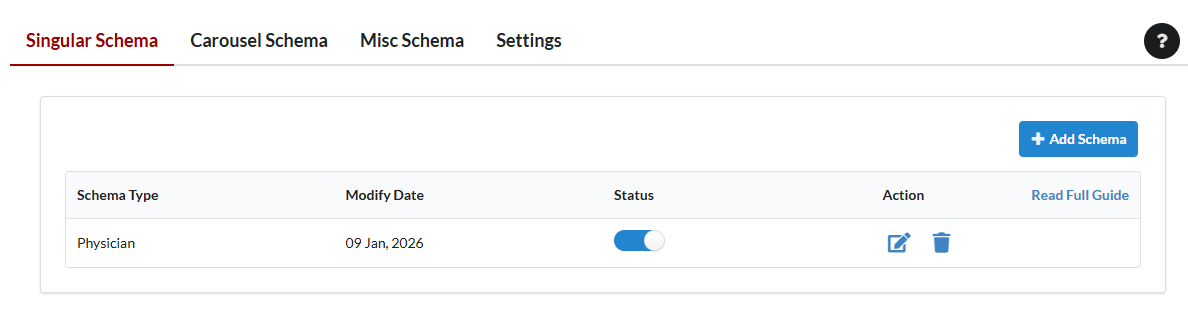
- Select a Medical or Healthcare Schema Type — e.g., Physician, Hospital, MedicalOrganization, MedicalCondition
- Set Targeting Rules (e.g., Apply to medical posts, doctor profiles, or clinic pages)
- Map fields:
- Name → Post Title
- Image → Featured Image
- Medical Specialty → Custom Field
- Address → Location Field
- Physician / Organization → Author or Custom Field
- Save the schema configuration
Note: Many required Medical Schema fields can be automatically populated by Schema Package. Manual mapping is optional unless you need to override default values.
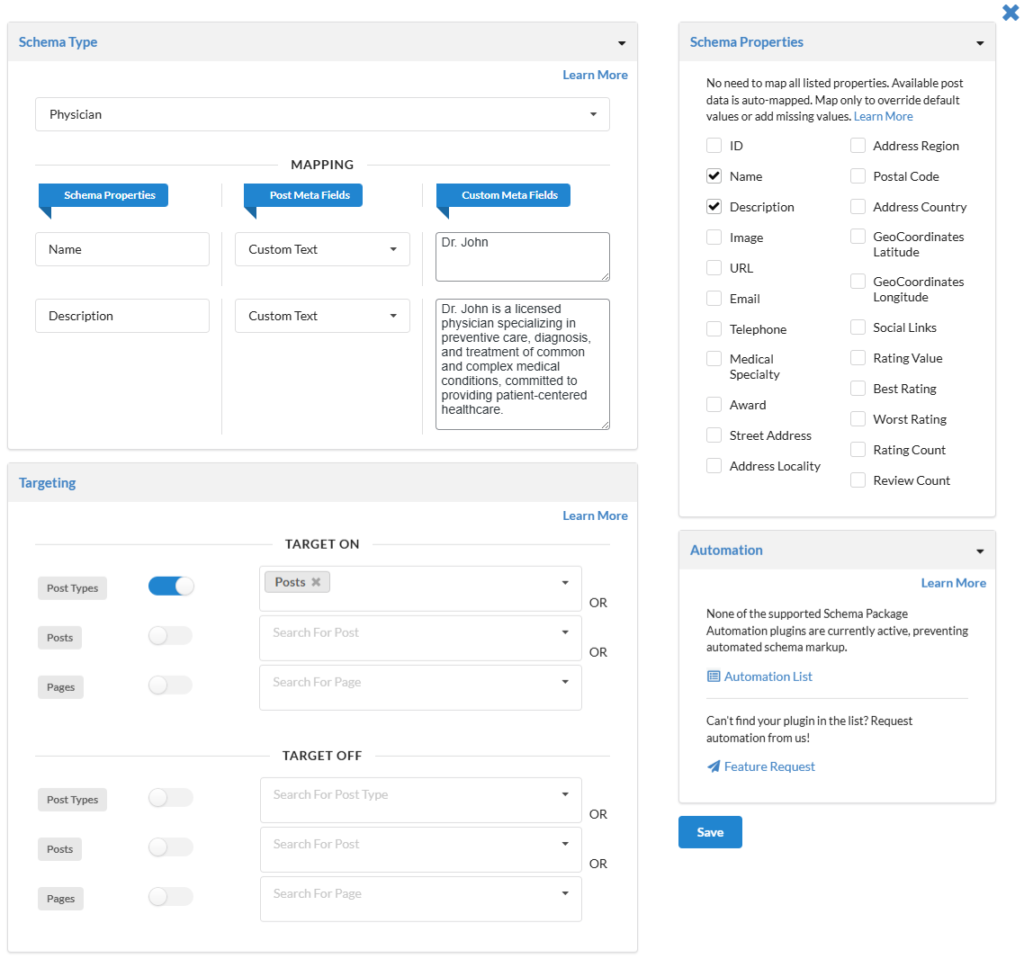
Medical Schema — Targeting Rules Explained
Medical & Healthcare schemas in Schema Package support two targeting modes:
- Target On (Include)
- Target Off (Exclude)
These targeting rules help control where healthcare schema should appear or not appear.
1. Target On (Include Targeting)
Use Target On to display Medical Schema only on selected healthcare-related content.
Available Conditions
- Post Types
Select medical-related post types - Posts
Select specific doctor or medical posts - Pages
Select clinic or hospital pages - Languages (Premium)
Targeting Logic
- Post Types / Posts / Pages = OR Condition
- Languages = AND Condition
💡 Example:
If Medical Schema is applied to Doctor Posts OR Clinic Pages, and Language = English, it will appear only on matching English medical content.
2. Target Off (Exclude Targeting)
Use Target Off when you want the schema to be displayed everywhere except selected content.
Available Conditions
- Post Types
Toggle on and select one or more post types (multi-select) - Posts
Toggle on and select specific posts (multi-select) - Pages
Toggle on and select specific pages (multi-select) - Languages (Premium feature)
Toggle on and select one or more languages (multi-select)
Targeting Logic
- Post Types, Posts, and Pages work in an OR condition
- If any one of these conditions matches, the schema will be displayed.
- Languages work in an AND condition
- The schema will be displayed only if:
- One of the selected Post Types / Posts / Pages matches
AND - The selected language also matches
- One of the selected Post Types / Posts / Pages matches
- The schema will be displayed only if:
💡 Example:
If a schema is excluded from Posts OR Pages, and Language = French,
the schema will be hidden only on matching posts/pages in French.
Notes
- Medical & Healthcare Schema Types are Premium-only
- Language-based targeting requires Premium
- OR logic increases coverage, AND logic refines accuracy
✅ Method 2: Add Medical Schema Per Post (Schema Package Generator)
Need full control for a specific doctor, hospital, or medical post?
- Open the post or page in WordPress.
- Scroll to Schema Package Generator.
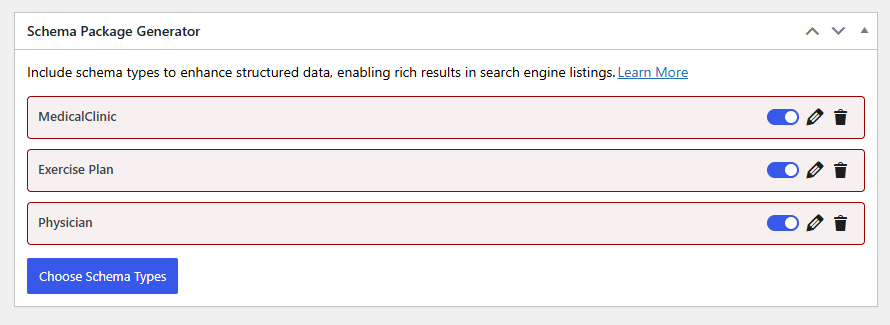
- Click Choose Schema Type and select a Medical Schema (Physician, Hospital, Drug, MedicalCondition, etc.)
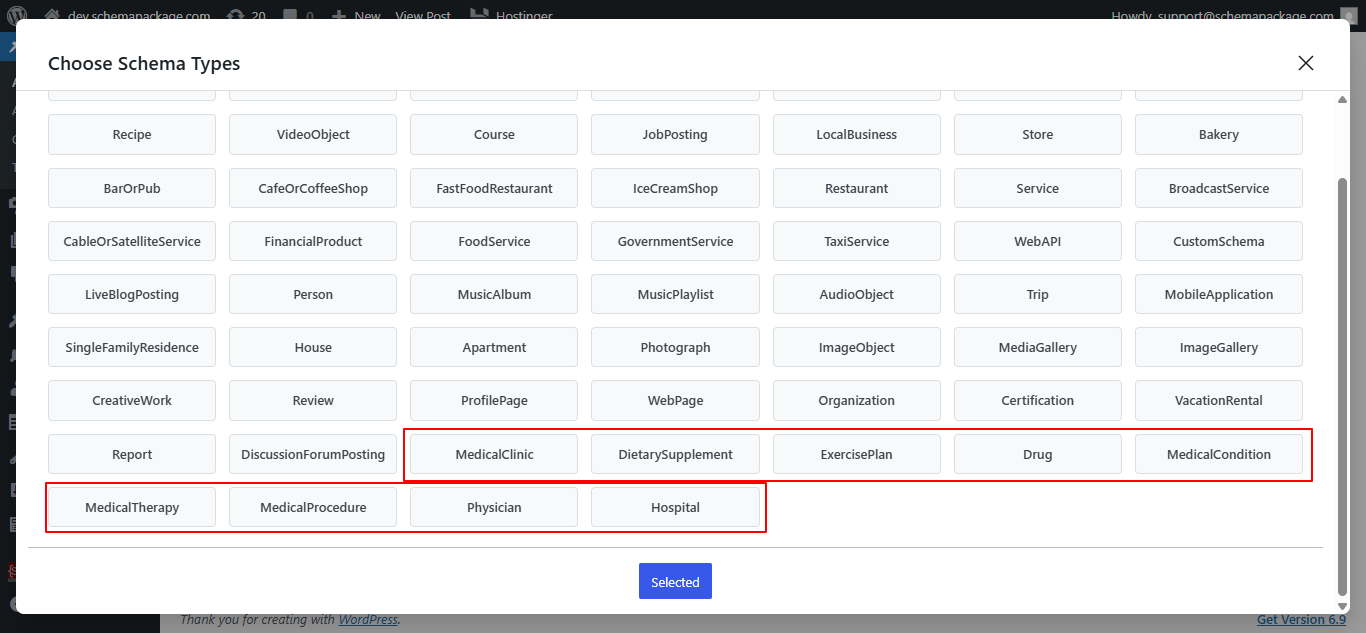
- Click Selected to attach the schema.
- Click the Edit icon next to the added schema. A second popup will appear with all its fields and properties.
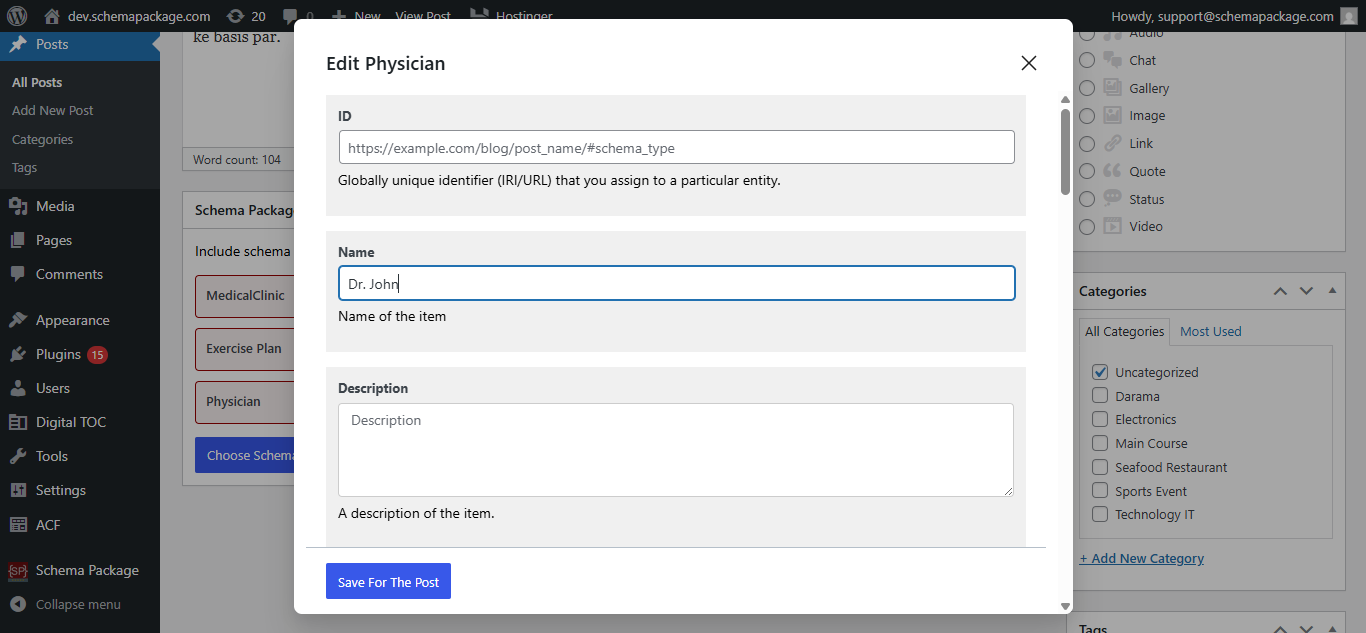
- Fill required details and click Save for Post.
- Update the post.
Note: This method is best for advanced healthcare pages requiring detailed or custom schema data.
Test Your Medical Schema Markup
Common Issues & Fixes
- Ensure accurate medical business details
- Use correct doctor or organization names
- Avoid duplicate schema from other plugins
- Validate schema after every update
Final Thoughts
Adding Medical & Healthcare Schema with Schema Package Premium helps improve trust, credibility, and medical search visibility.