
Mapping Schema Properties with Advanced Custom Fields (ACF) in Schema Package
This guide explains how to map schema.org properties with Advanced Custom Fields (ACF) using the Schema Package plugin. By connecting ACF fields to schema properties, you can dynamically generate accurate, structured data based on your post, page, or custom post type content without manually entering schema values each time.
What Is ACF Mapping in Schema Package?
ACF Mapping allows you to:
- Automatically populate schema properties from ACF field values
- Keep schema markup in sync with your content
- Avoid hard‑coding schema values
Schema Package reads ACF field data at runtime and injects it into the selected Schema.org properties in JSON‑LD format.
Supported Requirements
Before starting, make sure the following are in place:
- Schema Package plugin installed and activated
- Advanced Custom Fields (ACF) plugin installed and activated
- ACF fields already created and assigned to posts, pages, or custom post types
- At least one schema type added via the Schema Package Dashboard (Global Setup).
How Schema Package Detects ACF Fields
Schema Package automatically:
- Detects all registered ACF fields
- Groups them by field group and post type context
- Identifies the ACF field type (text, textarea, image, URL, number, etc.)
- Adjusts schema property options based on the selected ACF field type
This ensures correct data formatting and compatibility with Schema.org standards.
Note: Mapping works seamlessly for all basic ACF field types. However, in some advanced or custom ACF setups, additional adjustments may be required. These enhancements are available in the Premium version of Schema Package. Please upgrade to Premium and contact our support team. we’ll take care of the mapping for you.
Steps: Mapping Schema Properties with ACF
Follow the steps below to map schema properties with ACF fields.
Step 1 — Configure schema markup global setup using reference documentation : Go to
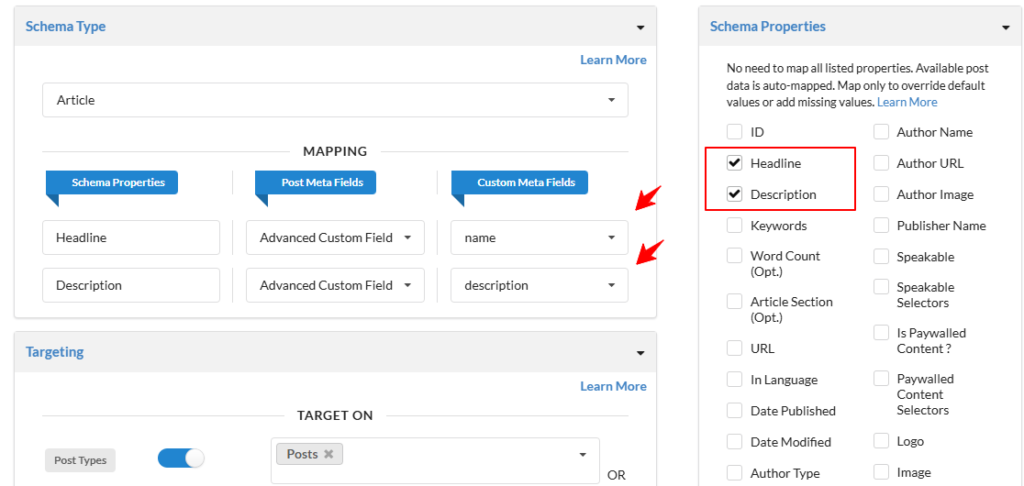
Step 2 — Checked the properties which need to be mapped from Schema Properties right side top metabox.
Mapping section will be added just below selected schema type with three main columns:
- Schema Properties
- Data Source / Value Selector
- Fields / Value Selector
Step 3 — Choose “Advanced Custom Field” as the Data Source in 2nd column from dropdown
Step 4 — Select/Search for the ACF Field as Value Selector in 3rd column from dropdown
Step 5 — Automatic Type Handling
Schema Package automatically adapts mapping based on the selected ACF field type:
- Text / Textarea → Used directly as schema text values
- Image → Image URL or ImageObject (based on schema requirements)
- URL → Used for URL‑based properties
- Number → Used for numeric schema properties (price, rating, etc.)
- Repeater / Group → Supported where schema allows multiple values
Step 6 — Preview and Save the Schema
- Review all mapped properties
- Click Save Schema
- Schema Package will now dynamically pull ACF values when rendering schema on the frontend
- Use clear and consistent ACF field names
- Match ACF field types with appropriate schema properties
- Avoid mapping empty ACF fields (ensure data exists)
- Test schema output using Google Rich Results Test or Schema Validator
Common Issues & Troubleshooting
ACF fields not showing?
- Ensure ACF plugin is active
- Check field group location rules
- Verify the schema is applied to the same post type
Final Notes
Mapping Schema Properties with ACF in Schema Package provides a powerful, flexible, and scalable way to generate structured data automatically from your existing content.
This approach is highly recommended for advanced WordPress setups, custom post types, and SEO‑focused websites that rely heavily on ACF for content management.
If you face any difficulties while setting up ACF mapping, feel free to contact the Schema Package support team—we’ll be happy to help.