
How To Configure Carousel Schema Using The Schema Package
Carousel Schema helps search engines understand a group of related content items (such as articles, products, videos, or movies) and display them as a rich, swipeable carousel in search results.
Using Schema Package, you can easily configure Carousel Schema without writing any code.
This guide explains what Carousel Schema is, when to use it, and how to configure it step by step using Schema Package.
What Is Carousel Schema?
Carousel Schema is a structured data format that allows multiple items to be grouped and presented together in search results.
Common use cases include:
- Article lists (blog series, guides, tutorials)
- Product collections
- Video playlists
- Review or recipe collections
- Category-based content
When Should You Use Carousel Schema?
You should use Carousel Schema when:
- A single page represents multiple related items
- You want search engines to understand item relationships
- You want improved eligibility for rich search features
⚠️ Important: Carousel Schema should only be used when the items are genuinely related and visible on the page.
Ways To Add Carousel Schema In Schema Package
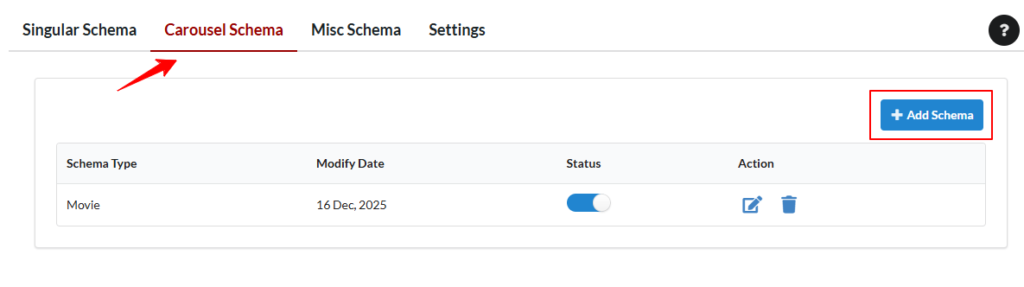
- Go to WordPress Admin → Schema Package
- Select Carousel Tab
- Click Add Schema
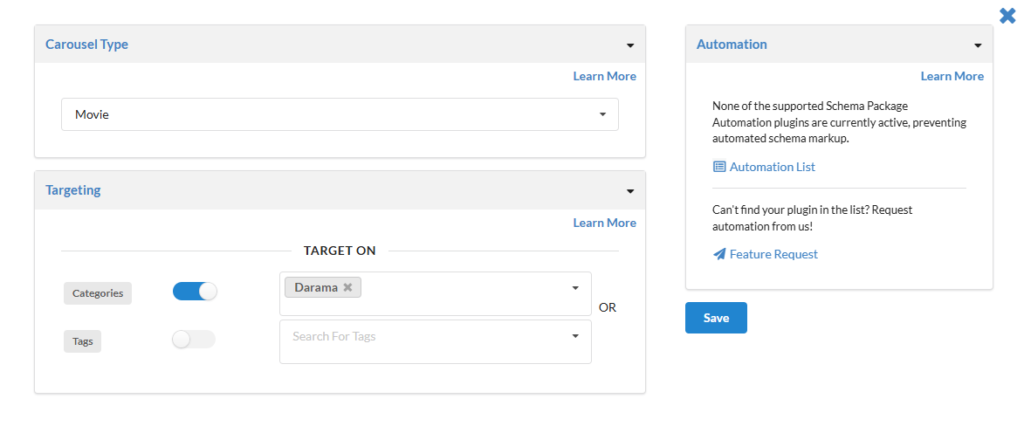
- Select Carousel Schema from dropdown as the schema type: eg. Movie
- Set Targeting Rules (eg. Categories, Tags)
- Save the schema configuration
Carousel Schema — Targeting Rules Explained
The Schema Package lets you control exactly where the Carousel Schema appears on your website using flexible targeting options. Below are the available settings and how they work:
1. Home Page
- This option is enabled by default.
- It appears as a toggle switch.
- When switched ON, the carousel schema will be displayed on the homepage.
- When switched OFF, it will be removed from the homepage.
2. Categories
- This setting includes:
- A toggle switch
- A multi-select dropdown (Select2)
- Behavior:
- By default, the toggle is OFF → no carousel on any category pages.
- When you turn it ON, the carousel will be displayed on all category pages.
- If you select individual categories in the Select2 dropdown, the carousel will only appear on those selected category pages.
- If the toggle is ON but no categories are selected → it still appears on all categories.
3. Tags
- Works the same as Categories:
- A toggle switch + multi-select field.
- Toggle OFF → carousel is not shown on tag archive pages.
- Toggle ON → carousel appears on all tag archive pages.
- If specific tags are chosen → carousel shows only on those selected tags.
4. Taxonomies
- Same behavior as Categories and Tags.
- If your site has custom taxonomies available in the admin, this field will appear.
- It includes:
- A toggle switch
- A multi-select field listing all available taxonomies
- How it works:
- Toggle OFF → no carousel for taxonomy archives.
- Toggle ON → carousel on all taxonomy archive pages.
- If specific taxonomies are selected → carousel only on those.
Targeting Summary Table
| Target Area | Toggle Default | If Turned ON | If Specific Terms Selected |
|---|---|---|---|
| Homepage | ✔️ ON | Shows carousel | N/A |
| Categories | ❌ OFF | On all categories | Only on selected categories |
| Tags | ❌ OFF | On all tags | Only on selected tags |
| Taxonomies | ❌ OFF | On all taxonomies | Only on selected taxonomies |
Best Practices for Carousel Schema
- Ensure all carousel items are visible on the page
- Use high-quality images with recommended dimensions
- Avoid adding unrelated items
- Use valid schema types for each item
- Do not duplicate identical Carousel Schema across multiple pages
How Schema Package Outputs Carousel Schema
Schema Package automatically:
- Generates clean JSON-LD ItemList Schema type
- With each carousel item urls correctly
- Avoids conflicts with other schema types on the page
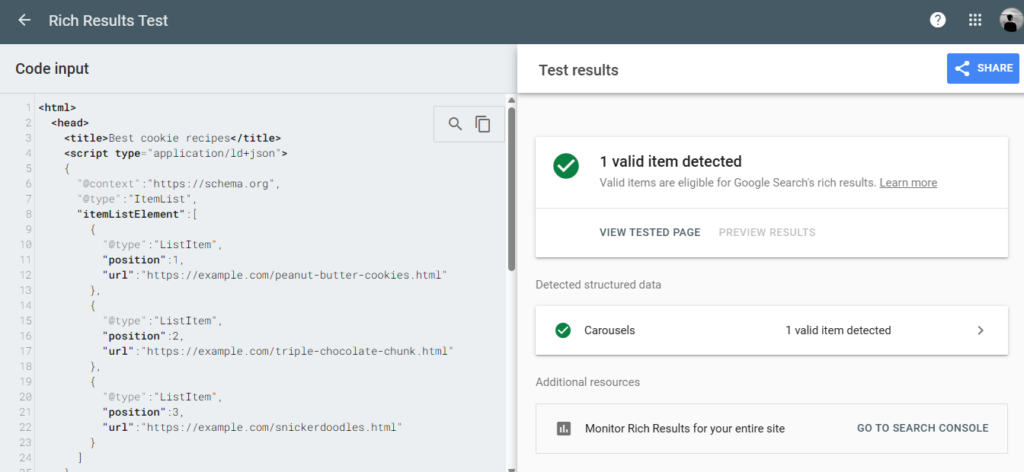
Test Your Schema Markup
After setting up your schema, verify it using the validator tools below. Simply copy your post URL or page source and paste it into one of the testing tools.
Common Issues & Tips
Carousel Not Showing in Search Results?
- Carousel display is not guaranteed
- Google decides when to show rich features
- Ensure content quality and relevance
Multiple Schemas on the Same Page
Schema Package safely allows:
- Carousel Schema
- Article / Product / Video Schema
- Breadcrumb Schema
to coexist without conflicts
Conclusion
Carousel Schema is a powerful way to represent grouped content in search results.
With Schema Package, you can configure Carousel Schema visually, accurately, and without writing any code—either globally or on individual posts using the Schema Package Generator.
If you need more flexibility, combine Carousel Schema with other schema types to give search engines a complete understanding of your content.